
Table of Contents
- Getting Started: Downloading and Opening Your Game Files
- How to Print a PDF at Actual Size Without Scaling Issues
- Choosing the Best Paper for Printable Games
- Configuring Printer Settings for High-Quality Game Output
- How to Print Game Cards at Home: Cutting, Assembly, and Finishing
- Laminating Printable Game Cards for Durability
- Troubleshooting Common Printing Problems and Cost Planning
- Frequently Asked Questions
Last Updated: October 12, 2026
Getting Started: Downloading and Opening Your Game Files
To print party games at home successfully, start with the right file format.
Files from AmericaMahjongfun.com are ready to print immediately, no software installation needed.
- Download the file to your computer or device
- Open it with your PDF reader (Adobe Reader, Preview on Mac, or your browser's built-in viewer)
- Check that all pages appear correctly and look for special instructions before printing
Most bundles include a welcome page or hostess guide, read it first for paper and printing recommendations.
If your file won't open, right-click and select "Open with" to choose another application, this solves 90% of opening problems.
How to Print a PDF at Actual Size Without Scaling Issues
The biggest printing mistake: the printer automatically shrinks your game to fit the page, ruining sizing for cards, tokens, and components. Turn off automatic scaling:
On Windows:
- Open your PDF and press Ctrl+P
- Find "Page Scaling" or "Scale"
- Select "None" or "Actual Size"
- Make sure "Fit to Page" is NOT checked
- Click Print
On Mac:
- Open your PDF and press Cmd+P
- Find the "Scale" dropdown
- Select "None" (not "Fit to Page")
- Click Print
Look for "100%" or "Actual Size." If you see "Fit to Page" or "Shrink Oversized Pages," change it, these reduce game size and break the design.
Print one test page and measure it against the dimensions in your game instructions. If it matches, print the full set.
Choosing the Best Paper for Printable Games
Paper choice is a decision per game component.
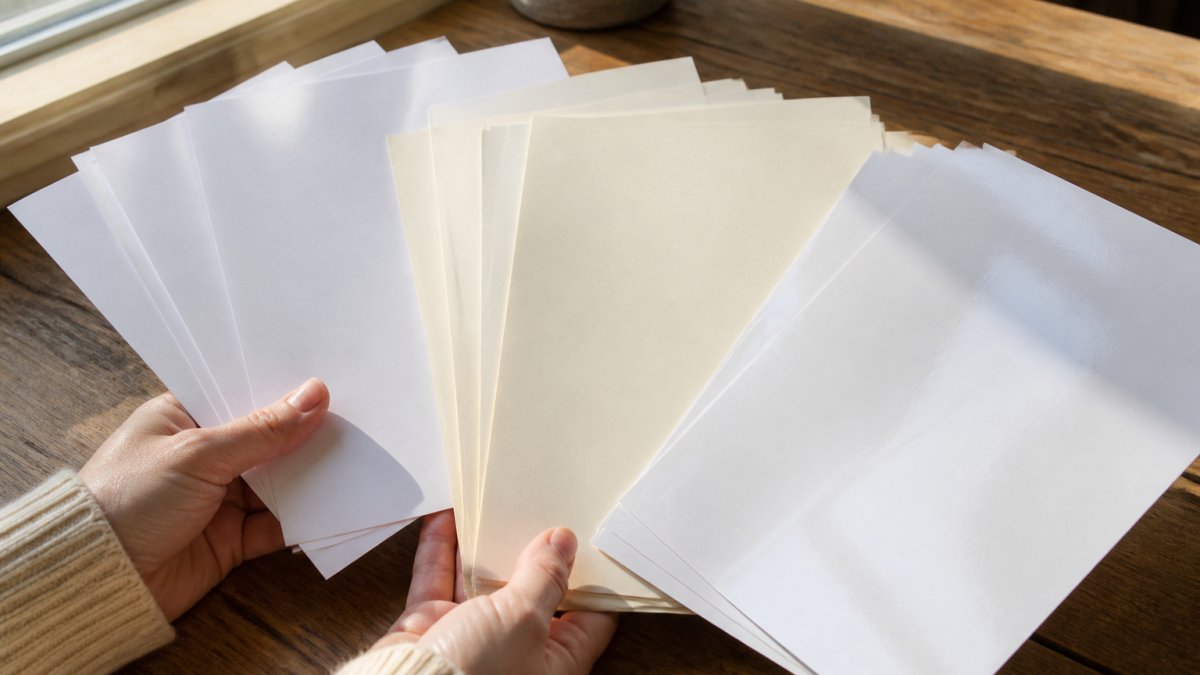
The three paper categories that matter
Standard copy paper (20 lb / 75 gsm)
- Best for: score sheets, answer keys, single-use worksheets, trial prints
- Cost: lowest per sheet
- Durability: low without lamination; creases easily
Cardstock (65-110 lb / 176-300 gsm)
- Best for: game cards, tokens, boards, anything shuffled or handled repeatedly
- Cost: roughly 2-4× copy paper per sheet
- Durability: high; 80 lb and up survives repeated shuffling without lamination
Coated stock (glossy or matte)
- Best for: color-heavy boards and cards where image quality matters
- Cost: highest per sheet
- Durability: high, but glossy shows fingerprints and smudges
Match paper to game format
| Game format | Recommended paper | Why |
|---|---|---|
| Single-page worksheet or score sheet | 20 lb copy paper | Printed once, written on, discarded |
| Bingo boards | 65-80 lb cardstock, matte | Handled all night; matte reduces glare under overhead lights |
| Card decks | 80-110 lb cardstock | Needs stiffness to shuffle and hold shape |
| Tokens and pawns | 110 lb cardstock or laminated copy paper | Must survive picking up and sliding |
| Multi-piece board games | 80 lb cardstock, laminated or mounted | Largest surface area, most wear |
| Answer keys | 20 lb copy paper | Host-only, not handled by players |
Smooth vs. textured finish. Glossy shows colors more vividly, best for photographic or gradient artwork.
Paper color. White gives the most accurate color reproduction. Off-white or cream suits themed games but shifts colors warmer, test one sheet before a full batch.
Cost planning by guest count. Costs scale with copies, not games:
- 8-12 guests: one copy of each component per player plus a host set. A card game uses 4-8 sheets of cardstock; a bingo set uses 1 board per player plus calling cards.
- 20-30 guests: expect 2-3× the paper of a small party. Buy cardstock by the ream (250 sheets), per-sheet cost drops noticeably.
- 50+ guests or a recurring club: home printing loses its cost advantage. Compare against a local print shop, which can print on heavier stock and cut to size for less than retail cardstock alone.
Low-ink and accessibility design choices. To stretch a cartridge or print for a large group:
- Choose white backgrounds and dark text over full-bleed color, far less ink and easier to read for players with low vision.
- Avoid designs that rely on color alone; patterns, labels, and shapes print reliably in grayscale for color-blind players.
- Use a minimum 12-point type for anything read at arm's length, larger for cards held at a distance.
A practical default. Start with 80 lb matte cardstock for cards and boards, and 20 lb copy paper for score sheets and answer keys.
Configuring Printer Settings for High-Quality Game Output
Start with the print dialog, not the printer menu. The settings that matter most live in the Ctrl+P (Windows) or Cmd+P (Mac) dialog, not the printer's control panel. Work through them in this order:
- Page size, confirm it matches your paper (8.5" × 11" is standard; A4 is 8.27" × 11.69" and will clip if your file was built for Letter).
- Scale, set to 100% or "Actual Size." Never "Fit to Page."
- Orientation, Portrait unless the file says otherwise.
- Paper type, Plain, Cardstock, or Glossy/Photo. This controls how much ink the printer lays down.
- Quality, Normal for text-heavy sheets, Best for color-heavy boards and cards.
- Duplex, off unless the file is built for two-sided printing.
Print quality settings. Draft mode is for proofing only, it bands and pales, making game text hard to read.
Color settings.
- Color Mode: Color, not Grayscale, for any game with colored design elements. Grayscale is fine for answer keys and score sheets.
- Color Correction: "Automatic" or "Document." Avoid "Photograph", it over-saturates flat graphic colors and can shift brand-consistent hues.
- Saturation: Leave at default. Washed-out colors almost always trace to the paper-type setting or a low cartridge, not the saturation slider.
Paper type selection. This dropdown changes ink volume and drying behavior more than any other setting:
- Plain Paper, lightest ink laydown; fine for copy paper, but colors look flat on cardstock.
- Cardstock, heavier laydown; correct for 65-110 lb stock.
- Glossy/Photo Paper, heaviest laydown with slow-dry formulation; prevents pooling but smudges if you stack pages too soon.
Wrong paper type is the most common cause of ink pooling and washed-out color.
Page setup and margins. Set margins to at least 0.5 inches.
Two-sided printing (duplex). If your game has content on both sides, don't trust automatic duplex on the first try. Manual duplex is more reliable:
- Print odd pages (1, 3, 5…).
- Let ink dry completely, 5-10 minutes for cardstock, longer on glossy stock.
- Flip the stack and reinsert it in the correct orientation for your printer (check the paper-feed diagram inside the tray).
- Print even pages (2, 4, 6…).
- Hold the sheet up to a light to check alignment before printing the rest.
The four failure modes to check before every batch
| Symptom | Likely cause | Fix |
|---|---|---|
| Cards print smaller than intended | "Fit to Page" or "Shrink Oversized Pages" is on | Set scale to 100% / Actual Size |
| Outer edges of the design are cut off | Margins set below the printer's minimum | Increase margins to 0.5 in or use a file built with safe margins |
| Front and back don't line up | Automatic duplex misregistration | Switch to manual duplex and verify with a test sheet |
| Ink smears when you touch the page | Wrong paper type selected, or pages stacked too soon | Match paper type to stock; let pages dry flat before stacking |
Ink smudging on glossy stock. Glossy and photo papers use slow-drying ink, so stacking fresh sheets transfers ink.
Low-ink and accessibility settings. To stretch a cartridge or print for a large group:
Halloween Mahjong Party Games Printable Bundle | 15 Mahj-O-Ween Games →
- Use Draft or Normal quality for score sheets and answer keys; reserve Best for boards and cards.
- Choose white backgrounds and dark text over full-bleed color, a fraction of the ink, and easier to read for players with low vision.
- Avoid relying on color alone; patterns, labels, and shapes print reliably in grayscale for color-blind players.
Print one test page on regular paper before every new game file.
How to Print Game Cards at Home: Cutting, Assembly, and Finishing
Once your pages print, the real work begins: cutting, organizing, and finishing components.
Cutting Tools
- Scissors: Works fine for straight cuts, slower
- Paper Cutter: Much faster and more precise (recommended)
- Rotary Cutter: Best for bulk cutting, requires a cutting mat
A paper cutter costs $15-30 and saves hours if you're making multiple games.
Cutting Process
- Let ink dry for 5 minutes after printing
- Stack pages neatly on your cutting surface
- Measure cut lines using the guides on your game sheet
- Make clean, single passes (don't saw back and forth)
- Stack cut pieces in order
Organizing Components Sort pieces by type as you cut, cards in one pile, tokens in another, score sheets and answer keys separate.
Assembly Steps
- Pair matching pieces if your game requires it
- Stack components in the order players will use them
- Bundle each player's set with a rubber band
Quality Check Before finishing, verify cuts are clean, no pieces are missing, text is readable on every card, and pieces fit as designed.
Laminating Printable Game Cards for Durability
Laminating protects your game from spills, wear, and repeated handling, extending its life.
Lamination Options
Self-Adhesive Sheets
- Cost: $5-10 per pack
- Process: Peel and stick over printed pieces
- Best for: Small quantities, individual cards
Heat Laminator
- Cost: $30-100 for a home machine
- Process: Feed cards through heated rollers
- Best for: Bulk lamination, professional finish
Laminating Pouches
- Cost: $10-20 per pack
- Process: Insert card, seal with heat or iron
- Best for: Medium quantities, flexibility
DIY Lamination (Budget Option) If you don't want to buy supplies:
- Print on cardstock instead of regular paper
- Seal edges with clear packing tape
- This protects corners from wear without full lamination
Lamination Best Practices
- Laminate after cutting and assembling
- Leave small margins around designs to prevent sealing edges
- Work slowly to avoid air bubbles, and let lamination cool before handling
Laminated games survive spilled drinks, repeated shuffling, and years of club meetings, the small investment pays off quickly for regular hosts.
Troubleshooting Common Printing Problems and Cost Planning
Here's how to fix the most common printing problems.
Problem: Pages Print Too Small
- Cause: Printer scaling is on
- Fix: Check "Actual Size" or "100%" in print settings
- Test: Print one page and measure it
Problem: Colors Look Washed Out
- Cause: Wrong paper type selected or low ink
- Fix: Select "Cardstock" or "Photo Paper" in printer settings
- Alternative: Increase color saturation in print preview
Problem: Text Appears Blurry
- Cause: Low print quality setting
- Fix: Change to "Best" or "High Quality" in printer settings
- Check: Make sure your PDF file itself isn't corrupted
Problem: Paper Jams
- Cause: Wrong paper type loaded or thickness mismatch
- Fix: Remove all paper, reload one sheet at a time
- Prevent: Match your printer's maximum paper weight
Problem: One Color Missing (Usually Magenta or Cyan)
- Cause: Printer cartridge is low or empty
- Fix: Replace the empty cartridge
- Check: Run your printer's cleaning cycle first
Cost Planning for Printable Games
| Component | Per-Game Cost | Notes |
|---|---|---|
| Paper (cardstock) | $0.50-$1.50 | Bulk buying reduces cost |
| Ink | $0.25-$0.75 | Depends on color coverage |
| Lamination (optional) | $0.50-$1.00 | Extends game life significantly |
| Total per game | $1.25-$3.25 | Varies by complexity |
Pre-printed games cost $15-40 per set, so printing at home saves money, especially for club events needing multiple copies.
Bulk Printing Strategy For a club or party:
- Buy paper in bulk (reams are cheaper per sheet)
- Print all games at once to reduce setup time
- Laminate in batches
- Store finished games in clear containers
AmericaMahjongfun.com's printable game bundles like the Halloween Mahjong Party Games bundle include 15 games in one download, making bulk printing economical, variety without buying multiple products.

When you print party games at home, the process is straightforward: start with the right file format, configure your printer correctly, and choose paper that matches your game type.
Frequently Asked Questions
Can I print party games on a regular home printer?
Yes, most party games are designed for standard home printers. They work best with inkjet or laser printers that handle 8.5" × 11" paper. Check your game file's specifications before purchasing, quality printable games like those from AmericaMahjongfun.com are optimized for home printing. Avoid printing oversized files on standard paper, as they'll require scaling that may distort images or text.
What paper should I use for printable party games?
Standard 20 lb white or off-white paper works for casual games, but cardstock (65-110 lb) provides better durability for games you'll handle repeatedly. For games you plan to laminate, standard paper is sufficient. Consider the game's purpose: bridal shower games can use lighter stock, while party games that involve cutting and shuffling benefit from heavier cardstock. Always test one page before printing full quantities.
How do I make printed game cards sturdier?
Laminating is the most effective method, use a cold laminator or adhesive laminating sheets for home use. Alternatively, print on cardstock instead of regular paper for immediate durability without lamination. For games with frequent handling, laminate first, then cut. This protects edges and prevents bending. Budget 5-10 cents per card for laminating supplies, making it cost-effective for party game bundles.
How do I know if my printer will work with downloadable game files?
Check that your printer supports PDF files and standard paper sizes (8.5" × 11" is universal). Most modern inkjet and laser printers do. Before committing to a full purchase, download a sample page and print it to confirm quality and sizing. Games from AmericaMahjongfun.com are formatted for standard US Letter size, so if your printer handles regular documents, it will handle the games.